
Direct Shorts URL Access: How to Go to YouTube Shorts
Les articles sont rédigés en anglais.
Direct Shorts URL Access: How to Go to YouTube Shorts
Getting to YouTube Shorts should take seconds, not a search session. Whether you're on a laptop, phone, or tablet, the fastest path is a single URL: https://www.[youtube.com/shorts](https://www.hazeclips.com/blog/how-to-turn-youtube-videos-into-short-social-clips). Type it, hit enter, and the vertical feed loads immediately. Everything below expands on that core idea — correct URL formats, device-specific steps, and shortcuts that cut the time to zero on future visits.
Quick Start: Jump Straight to YouTube Shorts
Fastest Ways
The official YouTube Shorts website lives at https://www.youtube.com/shorts. Open any browser, type that address in the bar, and press enter. That's it. No app, no account required to browse — though signing in personalizes what you see.
If you prefer voice commands on mobile, saying "take me to YouTube Shorts" through your phone's assistant works in most cases and drops you directly into the feed. You can also use a search engine and query "take me to YouTube Shorts"; the first result will be the official feed page.
Common Variations People Search
People arrive at this question from different angles. Some type "youtube shorts website" into Google. Others try to recall whether the URL has a dash, a dot, or something else. Rest assured: there is no dash, no extra word, no subdomain. The address is simply youtube.com/shorts.
What to Expect
When the page loads, you'll see one Short playing automatically in a vertical format. Scroll down to move to the next one. The feed is algorithmic, so the more you watch and interact, the better it gets at showing content you actually want.
Direct URL Formats That Always Work
Feed and Single-Video URLs
Two URL patterns cover virtually every Shorts use case:
- Full feed:
https://www.youtube.com/shortsorhttps://youtube.com/shorts— both resolve identically. - Single video:
https://www.youtube.com/shorts/VIDEO_ID— replace VIDEO_ID with the actual identifier from any Short.
The VIDEO_ID is the string of letters and numbers after the final slash in any Shorts link. For example, if someone sends you a Shorts link, the portion after /shorts/ is that video's ID.
Short Links vs. Typos
Typos are the most common reason a URL fails. If you've typed youtube comshorts, comshorts, you tube shorts com, or shorts youtube com, none of those will resolve correctly. The correct structure always follows this pattern: youtube.com forward slash shorts. No spaces, no reversed order, no missing dot.
Double-check two things: the dot between "youtube" and "com," and the forward slash before "shorts." A small miss in either spot sends you to an error page.
Copying a Shorts Link
To share or save a specific Short, tap or click the Share button while the video is playing and select Copy link. The copied URL will follow the https://youtube.com/shorts/VIDEO_ID format precisely — ready to paste into a message, a document, or your browser bar without editing.
How to Watch YouTube Shorts on PC
Desktop Browsers
YouTube Shorts on PC works in every major browser: Chrome, Firefox, Edge, Safari. Navigate to youtube.com/shorts and the vertical feed renders in a centered column on your screen. The desktop experience is clean and fully functional — you can like, comment, subscribe, and share without needing any extension or workaround.
If you've been searching for "youtube shorts online," "youtube shorts on pc," or "youtube shorts pc," those searches all point to the same destination. There's no separate PC version of the feed; the main URL adapts to desktop automatically.
Keyboard Tips
A mouse or trackpad scroll moves you through the feed, but a few keyboard shortcuts speed things up. The down arrow advances to the next Short; the up arrow goes back. Pressing M mutes and unmutes audio. Pressing F enters fullscreen. These work natively in the browser without any configuration.
Bookmark https://www.youtube.com/shorts and drag the bookmark to your browser's bookmarks bar. That single click eliminates typing the URL every time.
Open Shorts in the YouTube Mobile App
From the Home Screen
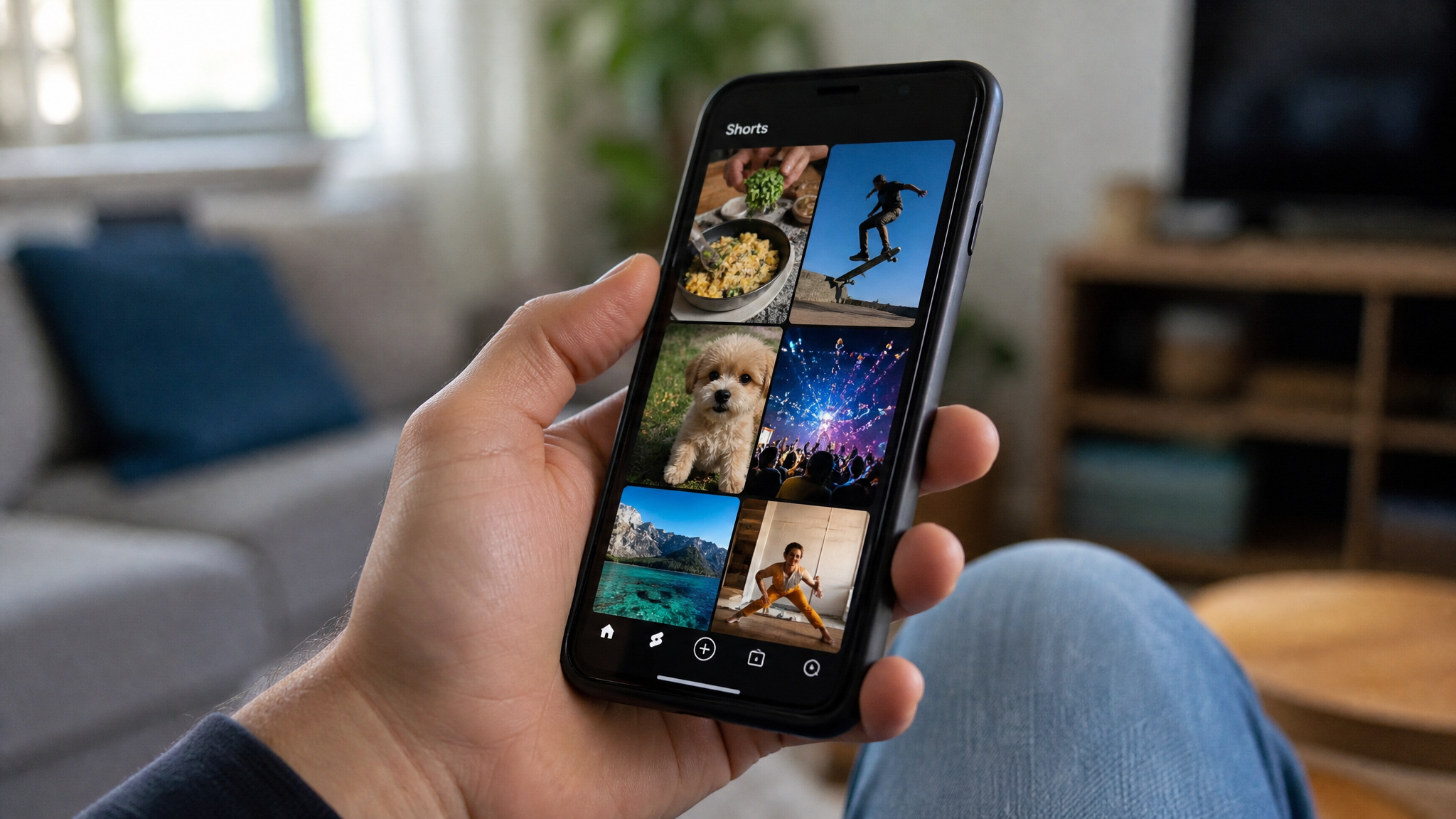
On both Android and iOS, the YouTube app places a Shorts tab at the bottom of the screen — usually the second icon from the left, represented by a play button inside a short film icon. Tap it, and the Shorts feed opens immediately. This is the most direct path for mobile users.
If you don't see the tab, update the app. Older versions may not display it prominently. A quick visit to the App Store or Google Play to check for updates usually fixes this.
Direct Navigation
Links formatted as youtube.com/shorts or youtube.com/shorts/VIDEO_ID will open in the YouTube app if YouTube is set as the default handler for those URLs on your device. On Android, go to Settings → Apps → YouTube → Open supported links and enable it. On iOS, links from other apps generally open in the YouTube app by default once it's installed.
If a Shorts link keeps opening in your mobile browser instead of the app, that settings toggle is almost always the fix. Once enabled, tapping any Shorts link from messages, emails, or social platforms routes straight into the app and starts playing.
Create Quick Access With Bookmarks and Shortcuts
Desktop Shortcuts
Beyond bookmarking, you can create a desktop shortcut that launches Shorts directly. In Chrome, open youtube.com/shorts, click the three-dot menu, go to More tools → Create shortcut, and check "Open as window." A Shorts icon appears on your desktop. Double-clicking it opens the feed in its own window — no browser tabs, no navigation required.
In Edge, the path is similar: the three-dot menu leads to Apps → Install this site as an app. You can also pin the tab in any browser so it reopens automatically every session, keeping Shorts ready without any extra clicks.
Mobile Home Screen
On mobile, open youtube.com/shorts in Chrome or Safari, then use the browser's share menu and select Add to Home Screen. This places a Shorts icon on your phone's home screen that behaves like an app shortcut. Tapping it opens the feed immediately — without opening the browser first, searching, or navigating through the full YouTube site.
About Downloading a Shorts App on PC
Official Options
There is no standalone YouTube Shorts app download for PC. YouTube does not publish a separate desktop application for Shorts. The browser at youtube.com/shorts is the official PC experience, and it's fully capable. Anyone offering a "YouTube Shorts desktop app" as a download from a third-party site is distributing something unofficial — avoid it.
PWA Install
If you want something closer to a native app feel on your desktop, install YouTube as a Progressive Web App (PWA). In Chrome or Edge, navigate to youtube.com, then use the install option from the browser's address bar or menu (look for the install icon or "Install YouTube" in the menu). Once installed, the PWA lives in your taskbar and app launcher like any desktop program.
After installation, set the PWA's start URL to youtube.com/shorts. You can configure this during setup or by editing the PWA's shortcut properties. From that point, launching the YouTube PWA drops you straight into the Shorts feed.
If the Shorts page isn't loading at all — on any device — run through three quick checks: confirm your internet connection is active, make sure you're signed into your Google account, and verify that Restricted Mode isn't enabled under your YouTube settings. Restricted Mode can hide content or block the feed from displaying properly.
The URL https://www.youtube.com/shorts is the single source of truth for accessing Shorts on any device. Bookmark it, shortcut it, or install the PWA — whichever method fits your workflow — and you'll never spend more than a second getting to the content you want.