
How to Add Captions to Your Videos for Short Form Content
Los artículos están escritos en inglés.
How to Add Captions to Your Videos for Short Form Content
Why Captions Matter for Short Form Video Content
Short form video moves fast. Viewers scroll, tap, and swipe in seconds, and if your content doesn't hook them immediately, they're gone. Captions are one of the most effective tools to stop that scroll — and the benefits go well beyond aesthetics.
Accessibility and Reach
Video captions make your content available to deaf and hard-of-hearing viewers, a community representing roughly 15% of the global population. That's not a niche audience; it's a significant segment you're leaving behind without them. Captions also expand reach across language barriers, giving non-native speakers a visual anchor that aids comprehension when your spoken words move quickly.
There are also legal and platform expectations to consider. Accessibility standards like the ADA and WCAG increasingly apply to digital content. Proactively captioning your videos reduces compliance risk and signals to platforms that your content meets their quality guidelines.
Engagement and Watch Time
Retention data consistently shows captioned videos outperform uncaptioned ones. Viewers watch longer, and completion rates climb — both signals that platform algorithms reward with broader distribution. When viewers can follow your message word for word, they're less likely to drop off mid-video.
Captions also carry an SEO benefit that many creators overlook. The text from your captions becomes searchable metadata, which improves discoverability on YouTube and helps platforms index your content more accurately.
Silent Autoplay Scenarios
Scroll through LinkedIn, Instagram, or Facebook and you'll notice most videos begin playing without sound. That's intentional — platforms default to silent autoplay to avoid disrupting users in public spaces or office environments. Without captions, your video is essentially a silent film with no story.
Short form video content lives and dies in these autoplay feeds. A viewer on a packed subway or sitting in a quiet library won't tap for audio, but they will read. Captions turn every silent view into an engaged one.
Caption Types and Formats You Should Know
Open vs. Closed Captions
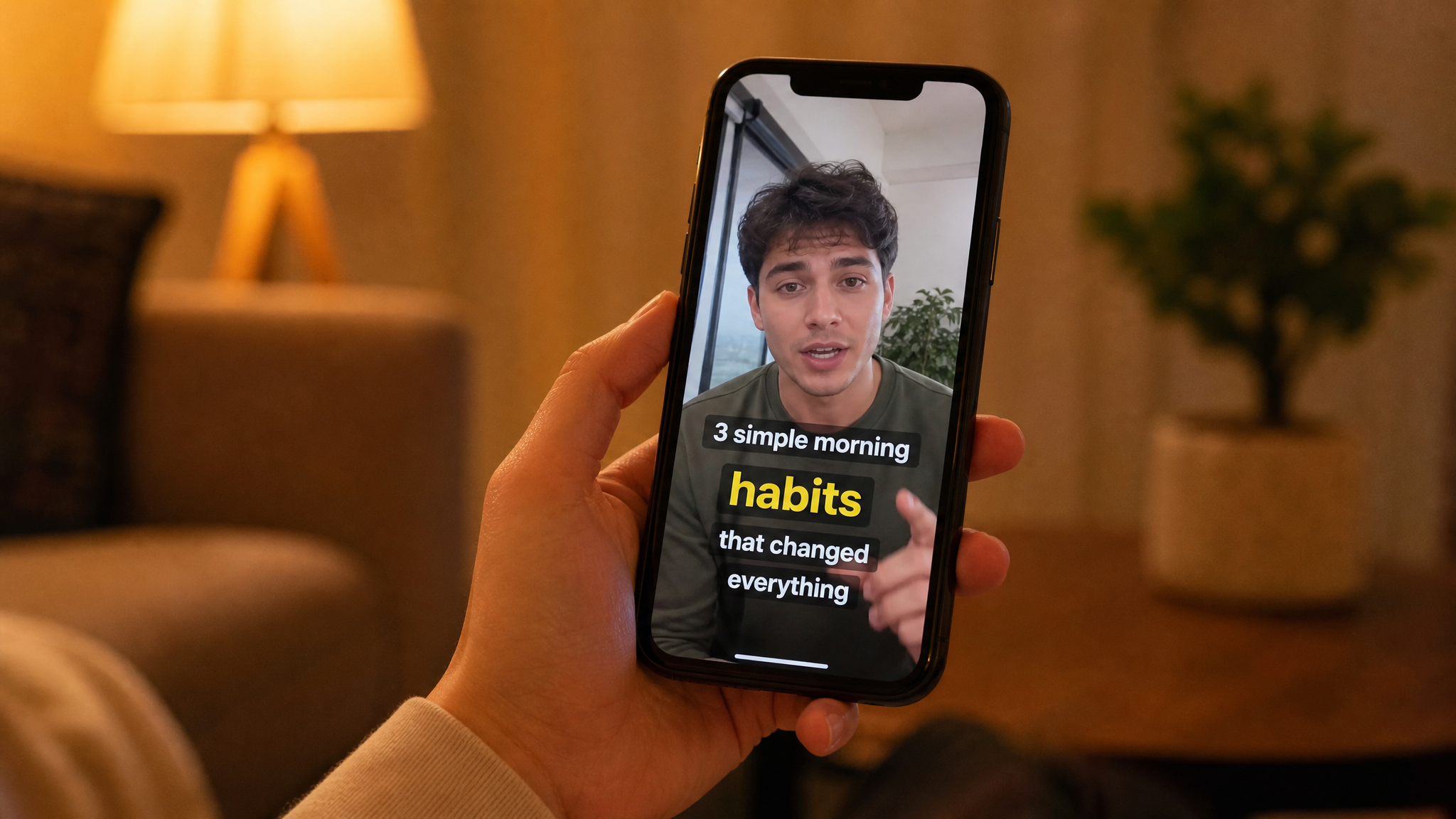
Open captions are burned directly into the video file. Every viewer sees them, on every platform, without exception. Closed captions are a separate layer that users can toggle on or off. For short form video content distributed across TikTok, Reels, and Shorts, open captions often make more sense — you control exactly how they look, and there's no risk of a platform failing to render them correctly.
Subtitles vs. Captions
These two terms get used interchangeably, but they serve different purposes. Subtitles translate spoken dialogue into another language. Captions transcribe all audio — dialogue, background noise, sound effects, speaker identification — for viewers who can't hear the audio at all. When you add subtitles to video for a multilingual audience, you're serving a different need than when you caption for accessibility. Knowing the distinction helps you choose the right approach for each piece of content.
Common File Formats
SRT (SubRip Text), VTT (Web Video Text Tracks), and SBV (SubViewer) are the three formats you'll encounter most. SRT is the most universally accepted and works across YouTube, Meta tools, and most third-party caption tools. VTT adds styling options and is preferred for web-based players. Choose your format based on where you're publishing — and always keep the source file so you can convert as needed when uploading to a new platform.
Preparing Accurate Text for Auto Captions and Manual Edits
Recording for Clarity
Auto captions are only as good as your audio. Record in a quiet space, use a dedicated microphone, and speak at a measured pace. Background noise, echo, and overlapping sounds all degrade transcription accuracy, which means more time spent fixing errors before you publish.
Brand-specific terminology is where auto captions stumble most often. Product names, industry jargon, and proper nouns frequently get mangled. Before you start editing, prepare a short reference list of terms you'll need to correct and keep it open while you review.
Transcription Workflow
A lightweight transcription workflow saves time downstream. Write or paste your script before recording, and use it as the baseline for your caption edit rather than relying entirely on what the platform generates. When you record clean audio against a script, the auto captions need far fewer corrections.
Keep your on-screen text concise. Short form video content moves quickly, and cluttered captions compete with your visuals for attention. Plan your wording so that when you add subtitles to video, each caption card reinforces your message rather than overwhelming it.
Best Caption Tools and Workflows
Built-in Platform Tools
TikTok, Instagram Reels, and YouTube Shorts all offer auto captions natively. They're fast, free, and sufficient for creators who prioritize speed over precision. The trade-off is accuracy — platform tools vary in quality, and none of them give you the styling control that dedicated software provides.
Third-Party Caption Tool Options
For more control, third-party tools like CapCut, Descript, VEED, and Adobe Premiere Pro each bring something different. CapCut is mobile-friendly and popular for social-first workflows. Descript lets you edit captions by editing the transcript directly, which speeds up the revision process considerably. VEED handles SRT import and export cleanly and works well for teams. Premiere Pro is the choice when you need frame-accurate timing and professional typography.
Mobile vs. Desktop
Mobile-first caption tools make sense when your entire workflow lives on your phone — capture, edit, caption, publish. Desktop tools shine when you're batch processing multiple clips or maintaining a consistent brand style across a library of content. Exporting SRT or VTT files from your caption tool and importing them consistently across channels keeps your edits uniform and saves you from re-editing the same corrections on every platform.
Platform-Specific Steps to Add Captions

TikTok
After uploading your clip, navigate to Captions in the editing menu. TikTok generates auto captions automatically — review each line for timing errors and terminology before you post. Pay close attention to the bottom third of the frame, where TikTok's UI overlays your username and description. Video captions placed too low will be obscured.
Instagram Reels
Instagram offers an auto captions Sticker in the Stories and Reels editor. Tap it, let it generate, then review. Meta's Creator Studio and third-party tools also support SRT uploads for Reels in select markets, giving you more precise control over timing and style. Keep captions in the center-safe zone to avoid the profile icon and caption overlay at the bottom.
YouTube Shorts
In YouTube Studio, upload an SRT file via the Subtitles section of your video settings. YouTube's automatic captions are generally accurate for clear audio, but always review them in the editor before the video goes live. Shorts are displayed in a vertical player, so test how your captions render on mobile before publishing.
Styling, Timing, and Accessibility Best Practices
Readability and Contrast
Use high-contrast text — white with a dark drop shadow or outline reads cleanly against any background. Font size should be large enough to read comfortably on a phone screen held at arm's length, typically at least 36–40pt in most editing tools. Keep captions within the title-safe area: roughly 10% padding from each edge of the frame.
Timing and Line Breaks
Limit each caption card to one or two lines, with 32–42 characters per line. That limit forces clarity and prevents viewers from pausing to read when they should be watching. Sync captions tightly to speech — a delay of even half a second creates a disconnect that feels unprofessional. For full accessibility, add speaker identification in multi-person videos and include relevant sound cues like [music] or [applause] where they add context.
Quality Check, Export, and Performance Tracking
Proof and Test
Before exporting anything, proofread every caption line. Names, product terms, and emojis all trip up auto captions in predictable ways. Watch your video through on at least two different devices — a phone and a tablet if possible — to confirm nothing is cropped, obscured, or rendered incorrectly by the platform UI.
Export both a burned-in version for platforms that don't support external caption files and a separate SRT or VTT file for those that do. Keeping both gives you flexibility without needing to re-edit.
Measure Impact
Caption adoption shouldn't be a set-it-and-forget-it decision — measure it. Track watch time, average view duration, and completion rate before and after adding captions to your content. Platforms like YouTube Studio and TikTok Analytics surface these metrics directly. Even a 10–15% improvement in completion rate signals that your audience is more engaged, which compounds into better algorithmic distribution over time.
Captions are a small investment with measurable returns. Done well, they expand your audience, improve accessibility, and give every piece of short form video content a better chance of performing where it matters most.