
Best Video Clipping Software and Tools: 2026 Buyer’s Guide
Best Video Clipping Software and Tools: 2026 Buyer's Guide
Choosing the right video clipping software can mean the difference between a polished clip that drives engagement and a frustrating afternoon of export errors. Whether you're a streamer repurposing Twitch highlights, a marketer cutting product demos, or a creator trimming footage on your phone, the tool you pick shapes your entire workflow. This guide breaks down what to look for, which tools lead the pack, and how to buy smart.
What to Look for in Video Clipping Software
Core Editing Features
Start with the basics: trim, split, crop, and timeline controls. These aren't glamorous features, but weak implementations slow you down fast. A clipping tool should let you make frame-accurate cuts without hunting through menus. Ripple edits, multi-track timelines, and snapping controls all compound over time—saving seconds per cut that add up to hours across a project.
Performance and Output Quality
Raw editing power matters as much as the feature list. GPU acceleration keeps previews smooth when you're working with 4K or high-bitrate footage. Proxy editing lets you cut using lower-resolution stand-ins, then swap in the originals at export. Batch export is worth paying for if you're producing multiple formats regularly—vertical for Reels, square for feeds, landscape for YouTube—all from a single timeline.
Export presets for social platforms and streaming services remove the guesswork around bitrates, codecs, and aspect ratios. If you're manually entering settings every time, you're doing it wrong.
Workflow and Integrations
The best editing tools connect cleanly to the rest of your stack. Cloud storage integration—Google Drive, Dropbox, or Frame.io—keeps assets accessible across devices. Direct upload to social platforms shortens the publish cycle. Stock media libraries baked into the editor (like Clipchamp's template and asset hub) cut the time spent hunting for B-roll.
Pricing and Licensing
Free tiers almost always include watermarks or export caps. If you're producing content for clients or commercial use, verify the licensing terms before you touch the export button. Compare what each plan tier actually unlocks: resolution limits, export count, template access, and watermark removal are the usual gating points.
Top Video Clipping Tools Compared
Web-Based Options
Clipchamp—sometimes searched as clipchamps or clip champs—is Microsoft's browser-based editor and one of the strongest web options available. It handles quick exports well, ships with a solid template library, and integrates directly with OneDrive. It won't replace a professional suite, but for fast turnarounds and team members who don't want to install software, it earns its place.
Desktop Editors
Movavi Clips for PC delivers a clean timeline interface with reliable codec support and enough controls for most mid-tier projects. It's a practical choice when you want desktop performance without a Creative Cloud commitment.
Adobe Premiere Pro sits at the professional end. The ability to zoom in on clip timelines for frame-accurate edits—the Adobe Premiere Pro zoom in on clip function—makes it indispensable for precise audio alignment and multi-layer sequences. It's heavier to learn and heavier on budget, but the output quality and ecosystem depth justify both.
Legacy tools like Streamclip still circulate for a reason. If you need a fast, no-frills way to convert and trim video files without touching a full NLE, Streamclip handles it without ceremony.
Mobile Apps
iPhone Clips offers a quick, native experience for Apple users—good for rough cuts, captions, and fast social posts directly from the camera roll. On Android, Adobe Premiere Clip Android provides timeline controls and syncs with Creative Cloud, giving mobile creators more precision than most phone apps allow. Adobe Clip Video and Adobe clips generally share this ecosystem, making it easy to start a cut on mobile and finish it on desktop.
AI Clip Generators
AI-powered tools have matured quickly. An AI clip generator can scan a 45-minute stream or podcast, detect applause, high-energy speech, or keyword mentions, and output a shortlist of highlight clips in minutes. AI video clip generator platforms like these are reshaping how high-volume creators handle repurposing. The resulting AI generated video clip drafts still need a human pass for pacing and context, but the time savings on the first cut are real.
Best Choices by Use Case
Social and Streaming Content
CrossClip Pro is purpose-built for streamers converting horizontal Twitch or YouTube clips into vertical formats for TikTok, Reels, and Shorts. Its smart reframing and caption tools make the conversion nearly automatic, and premium templates keep the output looking polished rather than cropped-and-forgotten.
Professional Editing Suites
Adobe Premiere Pro remains the benchmark for professional work. Frame-accurate trimming, multi-cam editing, and deep color tools give editors full control. The zoom in on clip feature is particularly useful when syncing dialogue to cuts or catching a jump at the frame level.
Quick Mobile Clipping
When speed beats precision, iPhone Clips and Adobe Clip Video handle the job. Shoot, trim, caption, and post—the whole loop can happen in under ten minutes for a simple piece of content.
AI-Assisted Highlight Reels
For creators running high publishing volumes, AI clip generator platforms cut the labor of reviewing long recordings. Feed in a recorded webinar or gaming session, and the tool surfaces the moments worth clipping. From there, light manual editing shapes the AI video clip into something publish-ready.
Pricing and Plans Overview
Free vs. Paid Tiers
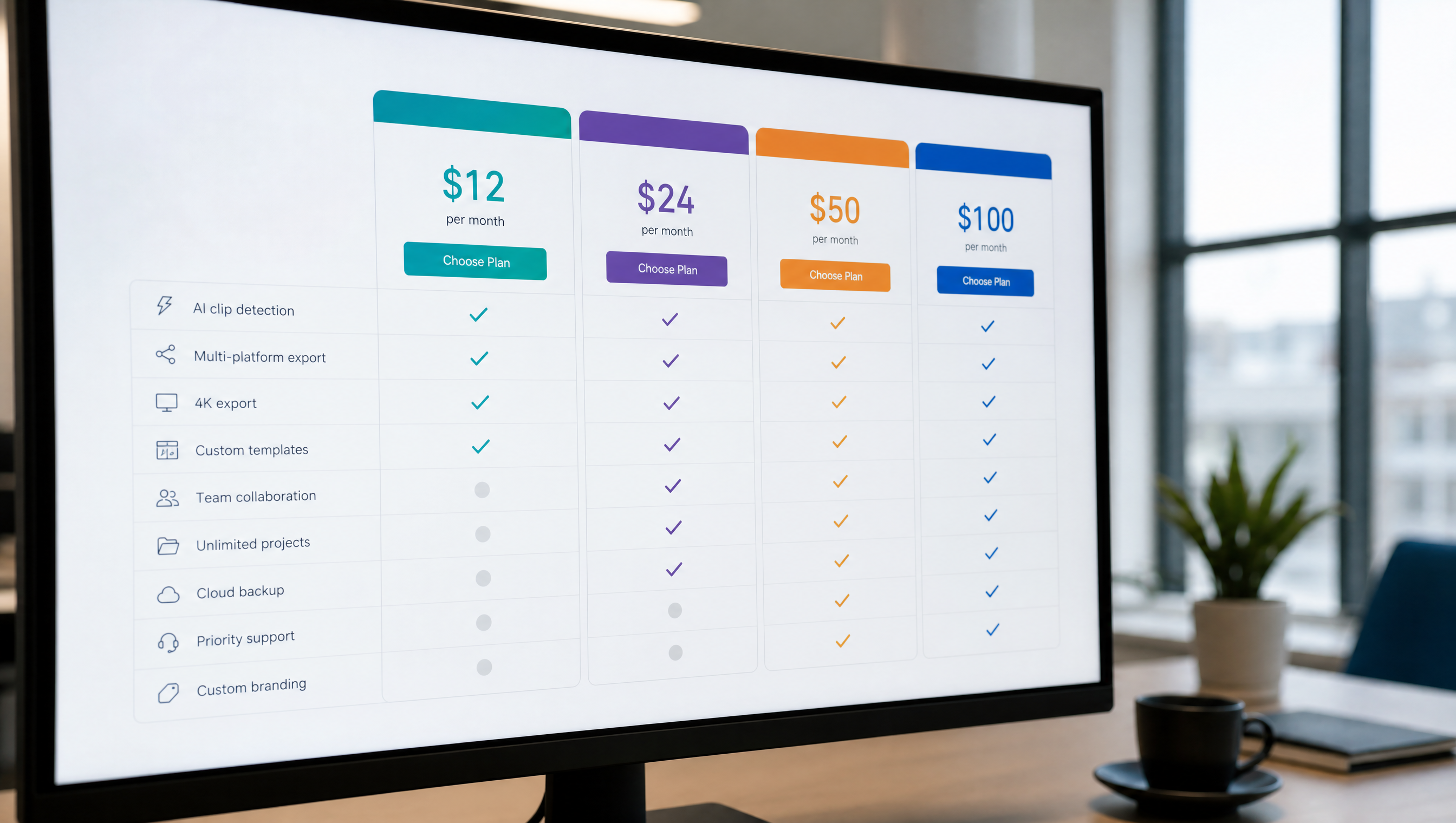
Clipchamp's free plan covers the basics but limits premium templates and certain export options. Paid tiers remove those caps and add features like higher-resolution exports. It's one of the more generous free starting points in the space.
One-Time vs. Subscription
Movavi Clips for PC frequently offers one-time license pricing, which appeals to users who dislike recurring charges. Optional upgrade paths let you pay for new versions without committing to a subscription cycle.
Adobe's lineup runs on Creative Cloud subscriptions. The mobile apps like Adobe Premiere Clip Android are free entry points, but Premiere Pro sits inside broader CC plans ranging from single-app to all-apps tiers.
Add-Ons and Exports
CrossClip Pro charges at the plan level for premium templates, watermark removal, and higher export resolutions. AI video clip generator platforms typically meter usage by minutes processed or number of exports per month—so heavy users should model their monthly volume before committing.
Trial and Refund Policies
Most paid tiers offer a 7- to 30-day trial window. Use it with your actual footage and codecs, not sample files. Refund policies vary; Adobe has a 14-day cancellation window for annual plans, while some smaller tools offer satisfaction guarantees. Always read the fine print before entering billing details.
How to Clip Faster: Pro Tips and Workflows
Editing Speed Boosters
Keyboard shortcuts are non-negotiable for speed. Mark in/out points, ripple delete gaps, and move between edit points without lifting your hands from the keyboard. In Premiere Pro, ripple trim alone can compress an hour of raw footage down to a rough cut in a fraction of the time point-and-click allows.
Quality Control
Zoom in on clip timelines to catch issues at the frame level—misaligned audio, jump cuts, or a stray frame of black. Auto-transcription tools embedded in editors like Premiere Pro let you search spoken content by text, find the soundbite you need, and drop it into the timeline without scrubbing manually. From there, flagging strong moments for AI video clip drafts accelerates the repurposing pipeline.
Platform-Ready Exports
Save export presets for every format you publish regularly: 9:16 vertical, 1:1 square, 16:9 landscape. Preset-driven exports eliminate settings errors and reduce the number of rejected uploads to zero.
Buying Checklist and Next Steps
Before spending money, run through this process. Confirm OS and device compatibility, and verify that your hardware supports GPU acceleration for the editor you're considering—older machines can bottleneck even lightweight tools.
Download free trials and test them with your own footage, not demo clips. Check that your codecs import cleanly and that exports match the resolution and format you need. Scrutinize watermark policies on free tiers if any of your output goes to clients or commercial channels.
Finally, assess collaboration requirements. If a team needs to review, comment, or share templates, that narrows the field quickly. Tools with cloud libraries and shared workspaces—like Frame.io integration inside Premiere Pro—justify the higher spend when multiple people touch a project. Nail that checklist, and the right tool becomes an obvious choice.