
1
Open the B-roll tab
Every clip you make in Haze Clips opens in the editor. B-roll sits beside Captions, Music and SFX.
Pick how many cutaways you want and press Add. Haze Clips reads the clip's title, summary and transcript, searches free stock video for each idea and cuts the footage in over the speaker.
New signups are paused while we rebuild. Join the waiting list and we'll import this video as soon as you're in.
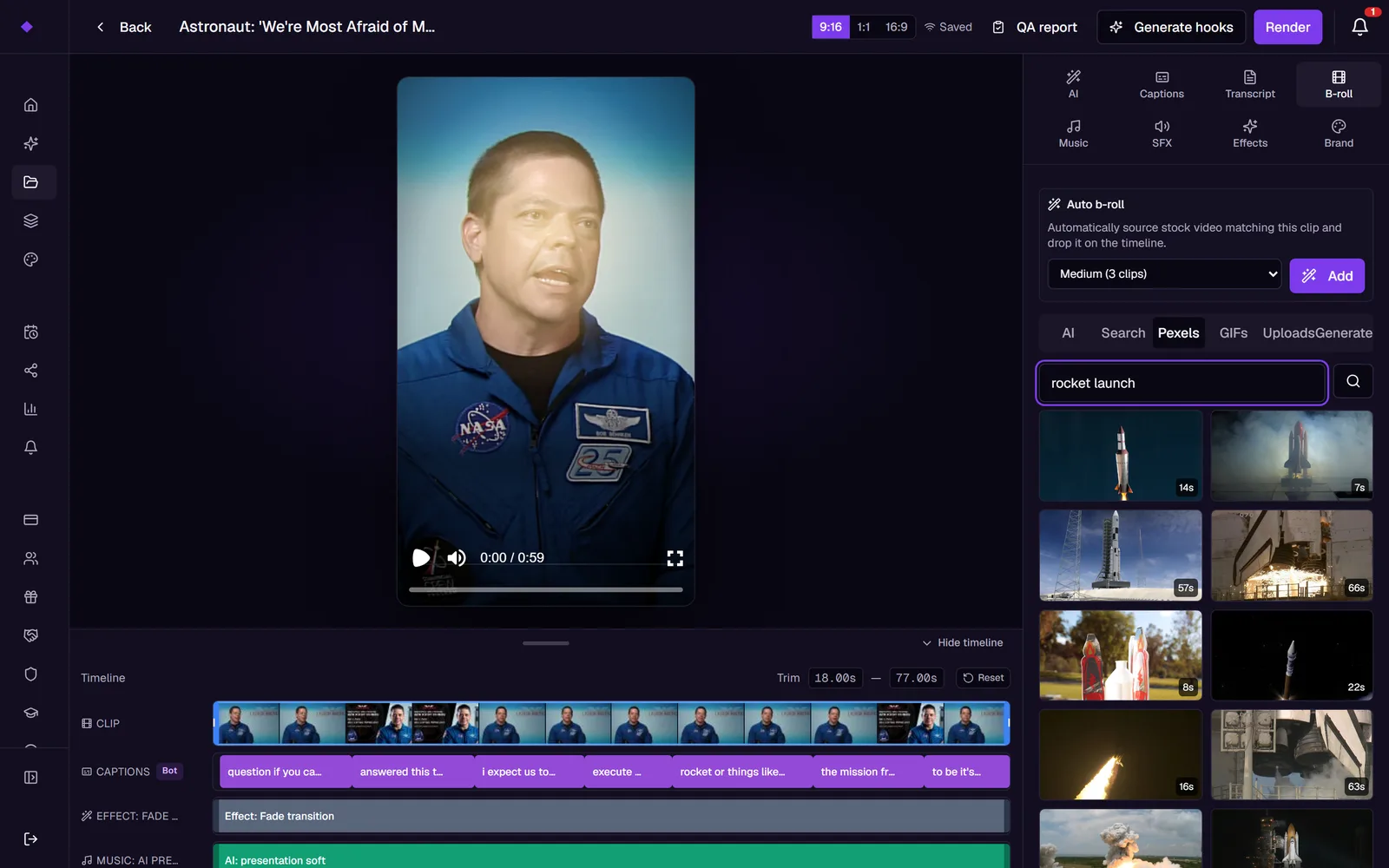
No stock-site tabs, no downloading and re-uploading files.
Every clip you make in Haze Clips opens in the editor. B-roll sits beside Captions, Music and SFX.
Light adds 2 cutaways, Medium 3 and Heavy 4. The AI turns what you say into short visual search phrases and pulls a stock video for each one.
Each cutaway lands on the timeline, where you drag it to a new time or remove it. Render bakes footage, captions and sound into one MP4.
Cutaways are spread evenly through the clip, never overlap, and each runs for up to three seconds. This is the exact layout auto b-roll uses on a 30-second clip.
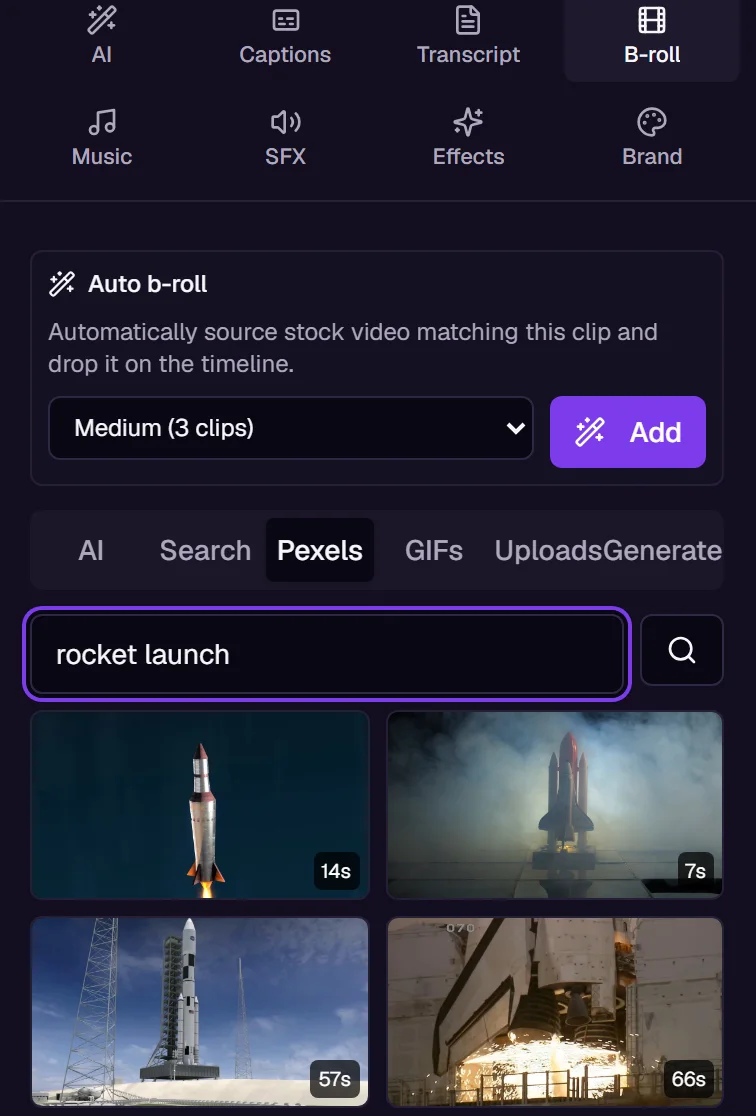
The tabs under auto b-roll let you choose by hand. Search stock video on Pexels, look up images or GIFs, reuse your own uploads, or start from the AI's suggestions for the clip.
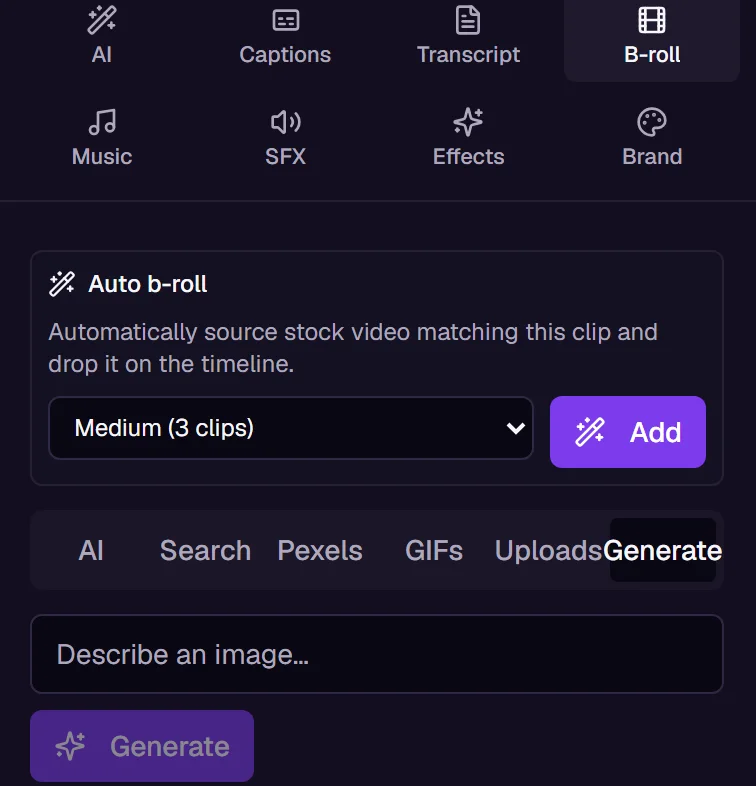
Describe the shot in a sentence and Generate makes a vertical image from it and places it straight on the timeline. Useful for the idea no stock library has filmed.
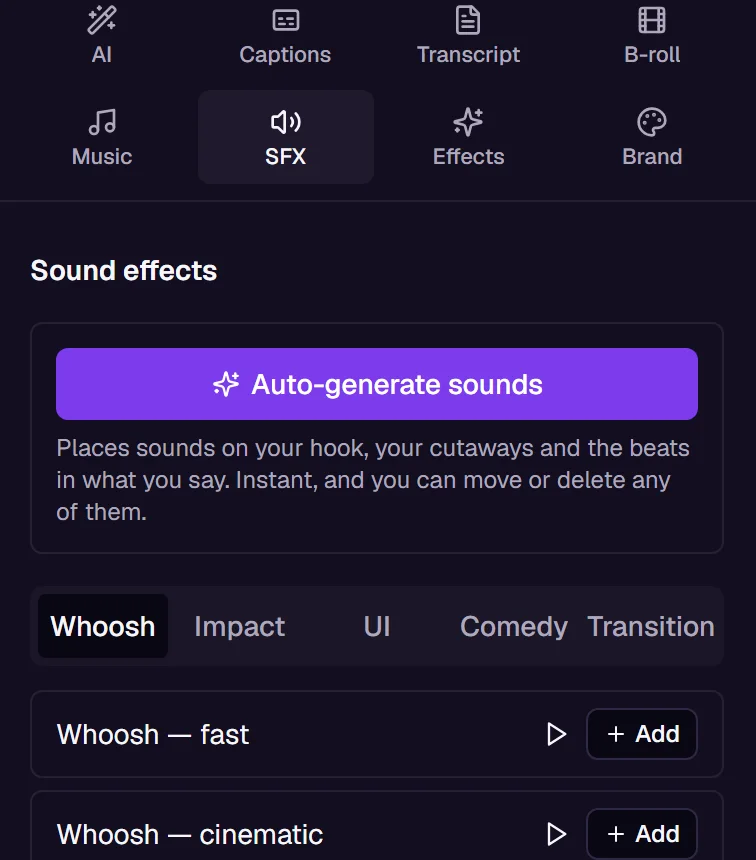
A hard cut to new footage with no sound reads as a glitch. In the SFX tab, Auto-generate sounds adds whooshes at your cutaways and sounds on the opening and your pauses, spaced out and capped so the clip never turns noisy.
B-roll is the footage you cut to while someone is talking. In Haze Clips, auto b-roll reads what a clip is about, searches stock video for it and places the results as cutaways over the speaker, so you are not hunting for footage clip by clip.
No. Auto b-roll places real stock video from Pexels, and the Generate tab makes still images from a text prompt. If you want video made entirely by AI from a script, that is Haze Agent, which runs on video credits.
Auto b-roll and stock search are on the Free plan. Free exports carry a small watermark that Pro removes. Generating images from a prompt is metered: Pro includes 50 a month, Studio and Agent 200.
Light adds 2, Medium 3 and Heavy 4. They are spread evenly through the clip, never overlap, and each runs for up to three seconds. If a search phrase finds no footage, that slot is left empty.
Yes. Every cutaway is a pill on the timeline that you can drag to a new time or remove. Pressing Add again replaces only the cutaways it placed; anything you uploaded or picked from the tabs stays.
No. Several built-in styles, such as Film, Ignite and Y2K, come with a b-roll density. Render a clip in one of them without setting b-roll yourself and stock cutaways are placed for you.
Yes. In the SFX tab, Auto-generate sounds adds whooshes at your cutaways and sounds on the opening and pauses, spaced out and capped so they never pile up. It runs instantly at no cost, and Regenerate sounds only replaces the sounds it placed.
Turn your long videos into short, viral content.